

Outlook may be great at storing emails, but once multiple PST files start piling up, things get messy fast. Juggling old backups, scattered folders, and duplicate messages not only clogs up storage but also slows down everything.
What’s worse, searching across these disconnected files becomes a time drain. It’s a familiar headache for anyone managing large volumes of Outlook data. That’s where merging PST files makes sense.
Done right, it can centralise your emails, trim the fat, and bring back speed and order. In this article, we’ll show you how to merge PST files without duplicates (without breaking a sweat).
What is a PST File?
A PST file, short for Personal Storage Table, is where Microsoft Outlook saves your emails, calendar events, contacts, tasks, and notes. It’s essentially a container that stores all your Outlook data locally on your computer. PST files are commonly used for backups or when archiving older emails to reduce the load on active inboxes.
Why Merge PST Files?
If you’ve been using Outlook for a while, you probably have more than one PST file lying around. Old backups, imports from different accounts, and archived folders tend to stack up over time.
Merging them makes it easier to manage everything from one place. It also helps avoid data silos, reduces duplicate emails, and simplifies search and backup tasks.
How to Merge PST Files Manually Using Outlook?
If you prefer not to use third-party tools, Outlook has a built-in method to manually combine PST files. Here’s how you can do it:
Outlook includes a built-in import feature for merging PST files without extra software. Here’s how to use it:
Step 1: Open Outlook and go to File > Open & Export > Import/Export
Step 2: Select “Import from another program or file”, then choose “Outlook Data File (.pst)”
Step 3: Browse and locate your first PST file
Step 4: Choose “Do not import duplicates” to prevent duplicate entries
Step 5: Select your destination folder for the imported data
Step 6: Repeat for each additional PST file
The import wizard lets you pick specific folders instead of importing everything. You can select just your Inbox, Sent Items, or Contacts if needed. This approach works best when you have a few PST files with reasonable data sizes.
This approach works best when you have a few PSTs and the volume of emails is manageable. It gives you full control over what you want to keep or skip.
Drawbacks of Manual Methods
Manually merging PSTs through Outlook can be slow and error-prone. Large files take forever to load. Dragging emails from one file to another leaves room for duplicates.
There’s no built-in option to filter them out. The process also lacks automation, which means you’re stuck doing repetitive actions. If you have dozens of PST files or several gigabytes of data, Outlook might even crash or hang mid-transfer.
Merge Smarter, Not Harder With Stellar Merge for Outlook
Manual methods become cumbersome when dealing with multiple PST files. Third-party software handles complex merging tasks and detects duplicates more effectively than Outlook’s basic import function.
Stellar Merge Mailbox for Outlook addresses these challenges with automated duplicate detection. The software identifies duplicate emails, contacts, and attachments during the merge process. This prevents unnecessary file bloat and keeps your merged PST organized.
Key Features:
- Processes Multiple Files – Handles numerous PST files in a single operation regardless of size. The software can merge large PST files without performance issues or crashes that often occur with manual methods.
- Accurate Duplicate Detection – Analyzes content, sender information, and timestamps to identify duplicates. The algorithm compares email headers, message bodies, and metadata to ensure genuine duplicates are removed while preserving unique messages.
- Selective Merging – Choose complete merge or select specific folders based on your needs. You can merge only Inbox folders from multiple PSTs or combine specific data types like contacts and calendar entries without importing everything.
- Version Compatibility – Works with PST files from different Outlook versions seamlessly. The software handles PST files created in Outlook 2003, 2007, 2010, 2013, 2016, and newer versions without compatibility issues.
- Preserves Organization – Maintains your original folder structure during the merge process. Subfolders, custom categories, and hierarchical arrangements remain intact in the merged PST file.
How to Merge PST Files with Stellar:
Step 1: Launch the application and add your PST files using drag-and-drop or the Add PST button. You can also use the “Find PST” option if you’re unsure about file locations on your system.
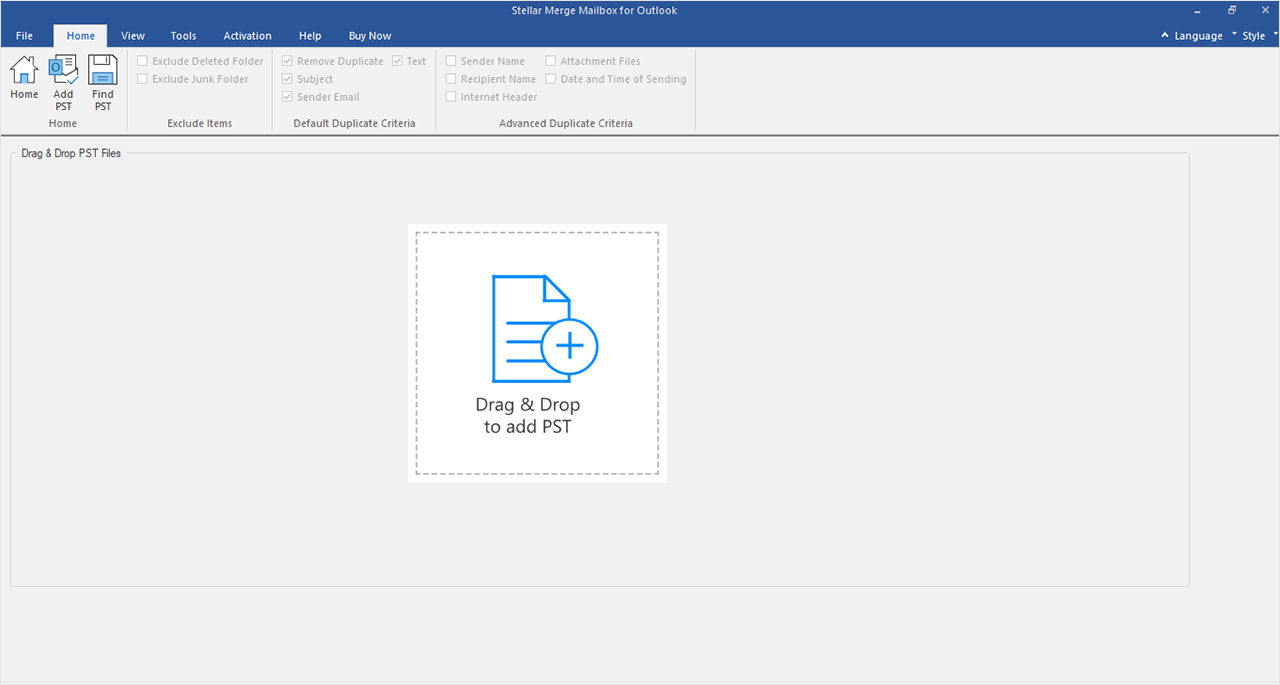
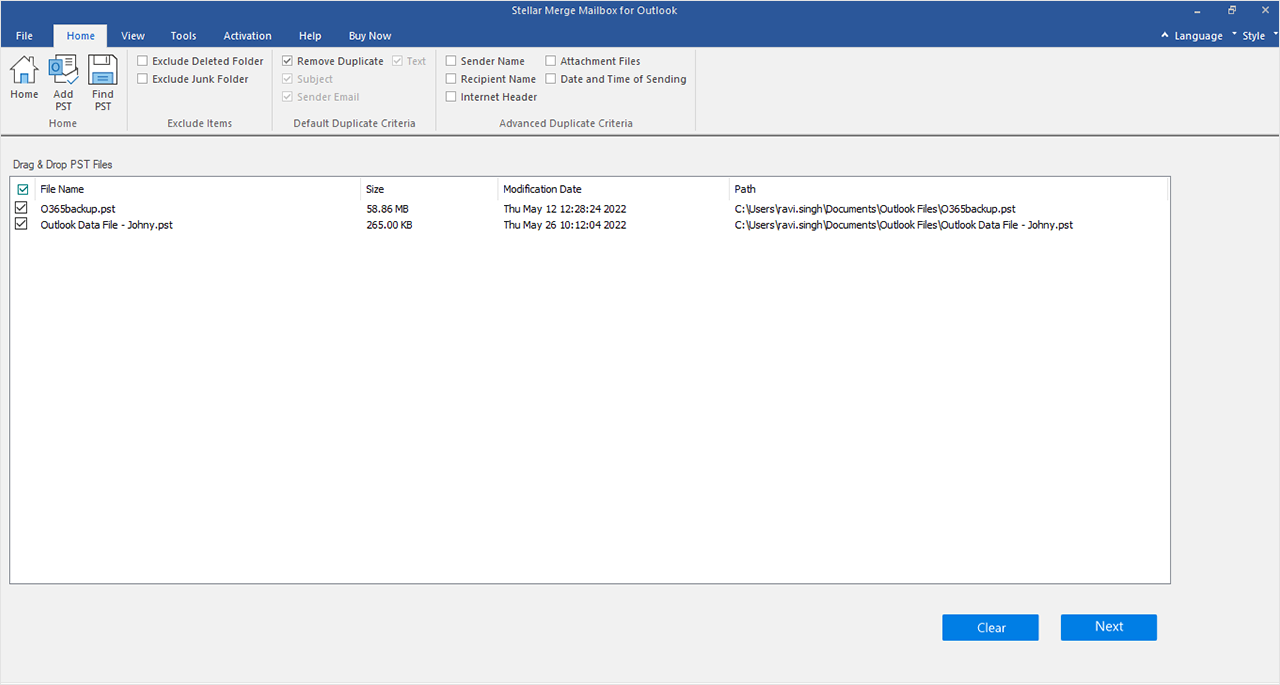
Step 2: Select the PST files you want to merge from the displayed list. The interface shows all added files with their sizes and locations for easy identification.
Step 3: Choose “Merge PST” from the available options in the right panel. This option combines all selected files into a single PST while maintaining folder structures.
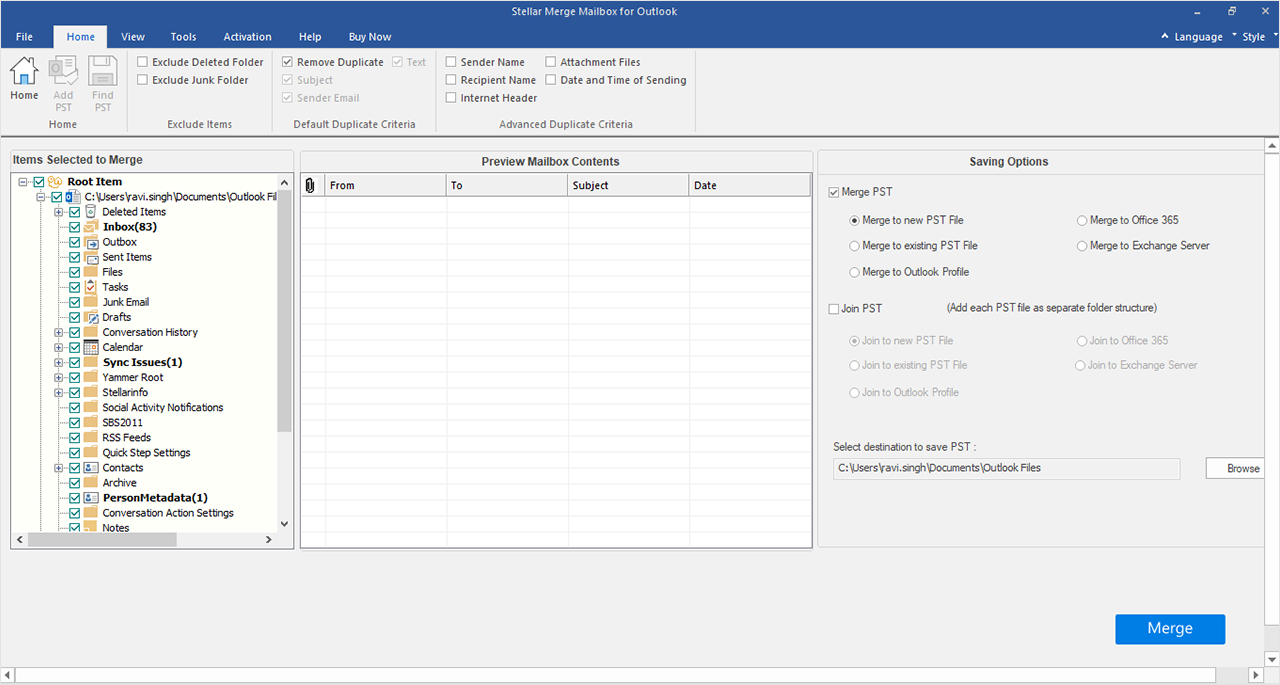
Step 4: Enable “Remove Duplicate” filter from the top panel and specify your destination folder. You can also apply additional filters based on date ranges or specific email criteria before starting the merge.
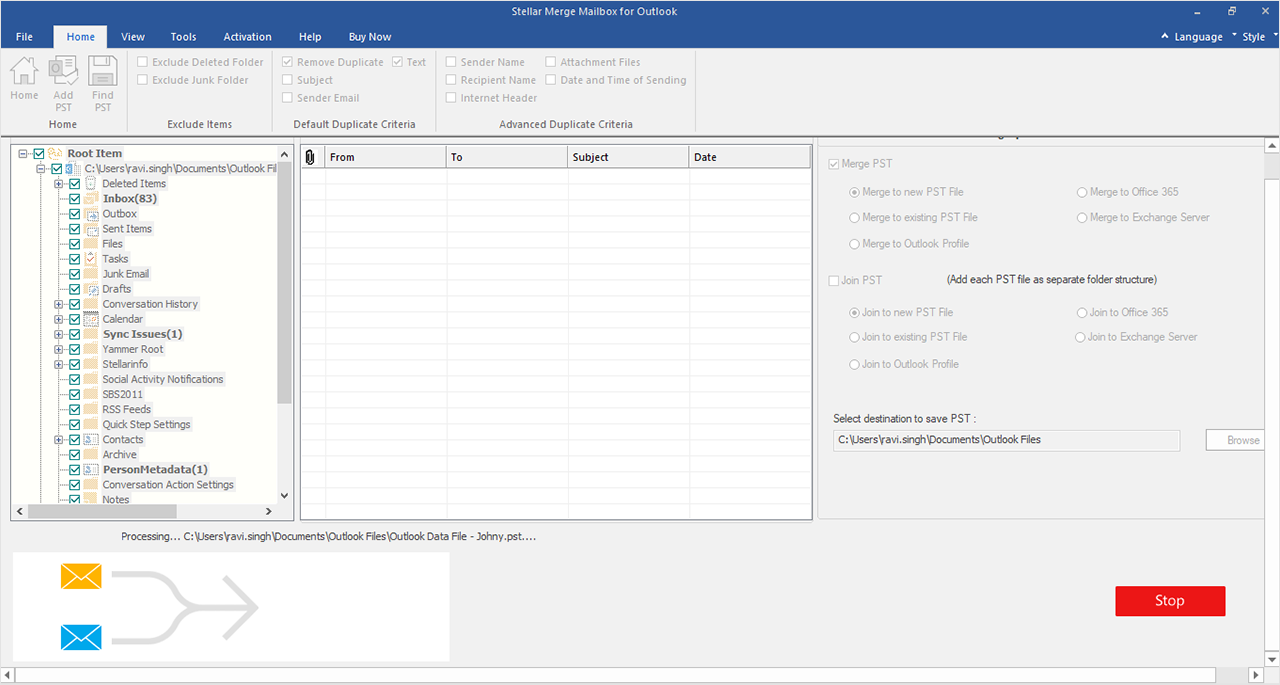
Step 5: Click Merge to begin the process and monitor the real-time progress bar. The software displays detailed statistics about processed items and identified duplicates during the operation.
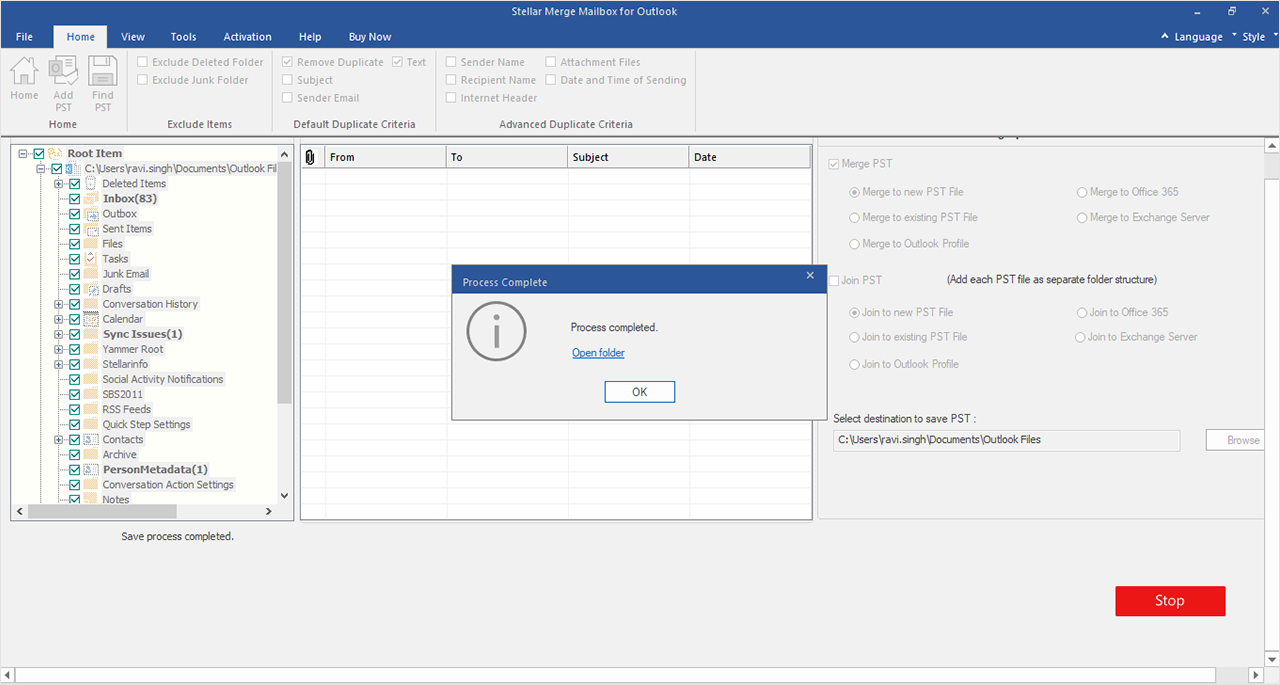
The application provides progress updates during the merge operation. Once complete, you can access your merged PST file directly from the completion dialog.
Final Words
We ran Stellar Merge Mailbox for Outlook on several PST sets, including large, small, old, and new ones. Every time, the result was fast, clean, and fully organized.
The duplicate removal worked exactly as promised, and the final file stayed lean. Folder structures were preserved without a hitch. Based on our tests, we give it a solid 5 out of 5 for ease of use, accuracy, and speed.
For organizations managing extensive email archives, automated merging tools offer clear advantages over manual methods. The time savings and improved accuracy make professional software worth the investment for serious PST management needs.
