

You want to keep your computer clean and fast. Gradually, many programs and browser plugins accumulate. Some you use and use and use, and some you don’t. These unwelcome apps suck up space and can drive your PC to a crawl.
Deleting them can reduce that bloat and help free up storage. But it can be tiresome and slow to uninstall each program one by one. This is where IObit Uninstaller can help. This is an easy-to-use uninstaller developed by IObit. It allows you to uninstall multiple programs and tools at once, providing time- and labor-saving experiences.
In this post, we will explain the value of batch uninstall and how IObit Uninstaller streamlines the process. We’ll also cover how to remove annoying software and sketchy browser extensions.
Screenshots to accompany the article will help you through the steps, displaying clearly what you are to find on your screen during each part of the process. You will learn why this free uninstaller is a good choice for maintaining your PC in an optimized condition at the end.
Why Batch Uninstalling Programs is Important?
Each program you install takes up a little space on your hard drive and can slow down your system. There’s also no shortage of garbage that browser plugins and toolbars can bring to the process. You may experience slower browsing speeds and may encounter errors.
Apps can be uninstalled via the Windows Control Panel, but there’s no possibility to uninstall multiple programs at the same time. And uninstallers built into modern Windows sometimes fail to remove every last scrap of an app, leaving files or registry entries. These remnants take up space and can be problematic.
You are able to select multiple apps and put them together. It saves time and effort. And because advanced uninstallers like IObit Uninstaller scan your system more thoroughly, they’ll likely find more files for you to clean up than the built-in utilities. They locate and delete traces and remnants of undeleted files, which makes for a more thorough cleanup.
What Makes IObit Uninstaller 14 Free Stand Out?
IObit Uninstaller is popular because it is free and easy. The version 14 gives you now even easier program handling and time-saving features. It has several things goin’ for it that keep mass cleaning easy peasy:
- Tick multiple programs and plug-ins you’d like to uninstall at a time.
- Remove remnant files and registry entries after uninstallation.
- Uninstall difficult software that Windows can’t uninstall without difficulty.
- Automtically search for and clean up registry entries that are unwanted left over.
- A straightforward and clean interface that makes it accessible to all users.
- More features to clean junk files and optimize your computer.
And all this for free. This even more so makes IObit Uninstaller 14 Free utility a perfect pick for all who crave a quick and powerful Windows.
Step-by-Step Guide to Batch Uninstall Programs
IObit Uninstaller, which can remove several programs at once, will save you a huge amount of time. Follow this step-by-step guide to batcg uninstall the programs you don’t want anymore.
Step 1. Getting started is easy. Head over to the official IObit Uninstatller product page and download the free program. The file size is small, and installation is quick. After you have run the installer, open the program. The intuitive interface allows you to easily browse and manage all of your applications.

Step 2. Open IObit Uninstaller and check the list of all installed software. You can either scroll down and look around or use the search bar to find apps. Then, you’ll see all the programs, including recently installed ones, logged programs, large programs, and infrenquently used programs with boxes that are checked, meaning you have them and can be removed. You can choose as many as you want. When you have selected, click “Uninstall”. IObit Uninstaller will then begin uninstalling the selected programs in sequence.
After the normal uninstaller finishes, the program will look for the remaining files and registry entries from that program. Click Yes to delete these leftovers and ensure your PC is clean and junk-free. Batch uninstall makes it easy and lets you keep your system free of clutter.

Step 3. Browser add-ons and toolbars can slow down your Internet experience. Rid your computer of unwanted add-ons. IObit Uninstaller will get rid of several unwanted add-ons in a deco of seconds. Switch to the ‘“Plugins/Toolbar”’ tab. Here are all detected browser extensions from the likes of Chrome, Firefox and Edge.

Choose the plugins you want to uninstall and click “Uninstall”. This one clears up your browsers quickly without the need to manually delete each and every plugin from every browser.
Handling Stubborn Programs with Force Uninstall
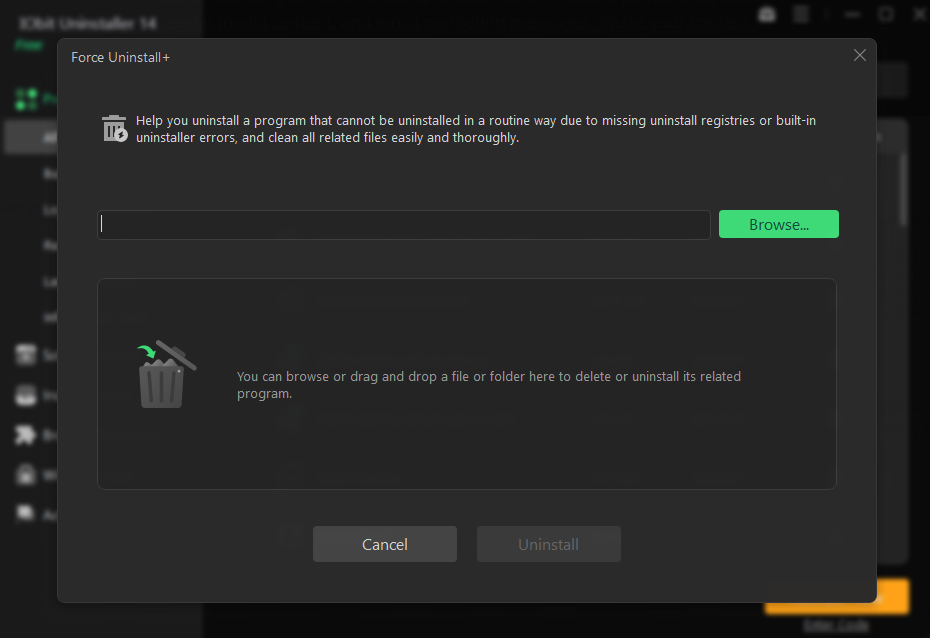
Occasionally, specific programs refuse or fail to uninstall and continue to clutter your system.
To handle these cases, you would need to use the “Force Uninstall” option. Choose the program you would like to remove and click a button.
IObit Uninstaller will perform a deep scan to get rid of all associated files and registry. This will help you get back the disk space and also keep your system stable.
Additional Cleanup Tools for Better PC Health
Other Features IObit Uninstaller 14 Free and Other System Utilities IObit Uninstaller 14 Free offers some other handy utilities. It sweeps up the junk files and empty folders that programs you’ve deleted have left behind.
It also watches for new installations. If you’re adding a program and then realize you don’t want it, IObit Uninstaller can also remove it very quickly. These elements will be able to keep your PC in an excellent state of performance.
Final Thoughts
If your PC feels slow or cluttered with apps and plugins that you no longer use, it’s time to clean things up. Manually, this is a pain. With IObit Uninstaller 14 Free, that process is easy and complete. Uninstall programs in batches and remove all related leftovers quickly. Get it now; and make your PC cleaner and overall faster.
