

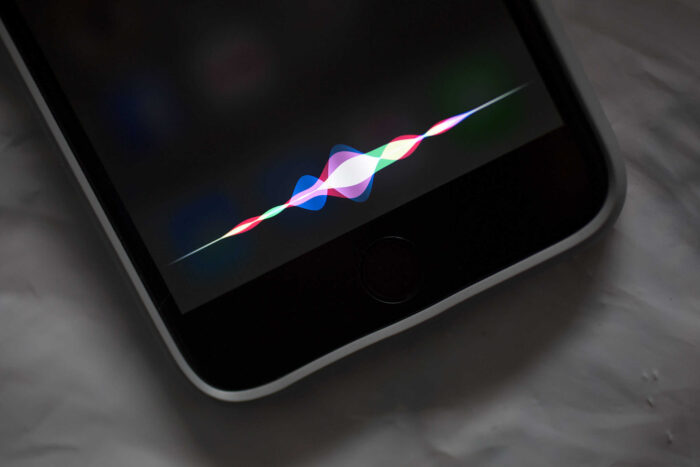
Apple has simplified the process of activating its Siri voice assistant with the new iOS 17 and macOS Sonoma update. Previously, users had to say “Hey Siri” to call the assistant, a practice that started with the iPhone 6.
With iOS 17, you can change Siri’s wake phrase on your iPhone to just “Siri.” This means you no longer need to say “Hey Siri.” This new feature is available not only on iPhones but also on iPads and Macs.
Continue reading to find out how to activate Siri by simply saying “Siri” on your iPhone. Moreover, iOS 17 introduces other exciting features, such as having Siri read web articles to you. Be sure to explore these new options.
Also Read: Is 702 SW 8th St Charge on Your Credit Card
Turn on Siri by Saying “Siri” on iPhone and iPad
At the WWDC 2023 event, Apple revealed upgrades to Siri, enhancing its ability to accurately interpret your commands.
In iOS 17, Siri can now react even when your iPhone is on Standby Mode, a notable enhancement. One key addition is the option to summon Siri without needing the “Hey” prefix.
This streamlines the interaction, providing quicker access to Siri’s capabilities, further enhancing the user experience. These improvements signify Apple’s commitment to refining its virtual assistant technology.
Considering this, here’s a simple guide on how to change the Siri wake command to just “Siri” on your iPhone or iPad:
- Launch the Settings application on your iPhone device.
- Navigate to the Siri & Search settings tab to enter the Siri settings.
- Select the “Listen for” section to display all the available wake phrases for Siri.
- Opt for either the “Siri” or “Hey Siri” option at the top of the list to enable one of the keywords.

Keep in mind that when you adjust Siri to answer to simply the phrase “Siri,” it doesn’t mean that the “Hey Siri” command will stop working.
Both commands remain active, and you can switch between them as you wish. This flexibility allows you to choose the wake phrase that suits you best at any moment, whether you prefer the quicker “Siri” or the traditional “Hey Siri.”
This feature is designed to enhance user convenience, making Siri more accessible with shorter commands. It’s especially useful in situations where you need a quick response without saying the extra word.
Apple’s intention is to make their technology adapt to user habits and preferences, offering a more personalized interaction with their devices.
Turn on Siri by Saying “Siri” on Mac or MacBook
During the presentation, Apple mentioned that this updated Siri feature is accessible on various Apple devices, including MacBooks and Mac computers, aside from iPhones.
Read More: Typing Backwards 3 or ‘Ɛ’ On Mobile/Laptop
While the setup process is akin to iPads, configuring it on a Mac might pose some challenges. Here’s a concise guide for setting it up on a Mac:
- Open your Mac’s Settings app and find the Siri & Spotlight section in the left menu.

- Click on it. Then, expand the “Listen for” option by clicking the arrow next to it.
- Finally, select either “Siri” or “Hey Siri” from the options listed.

