

wp:paragraph
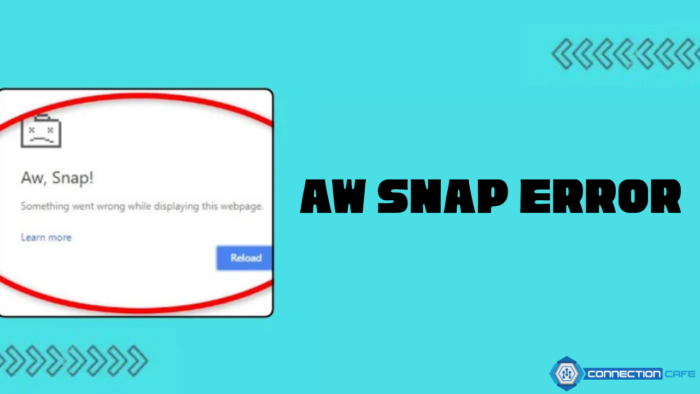
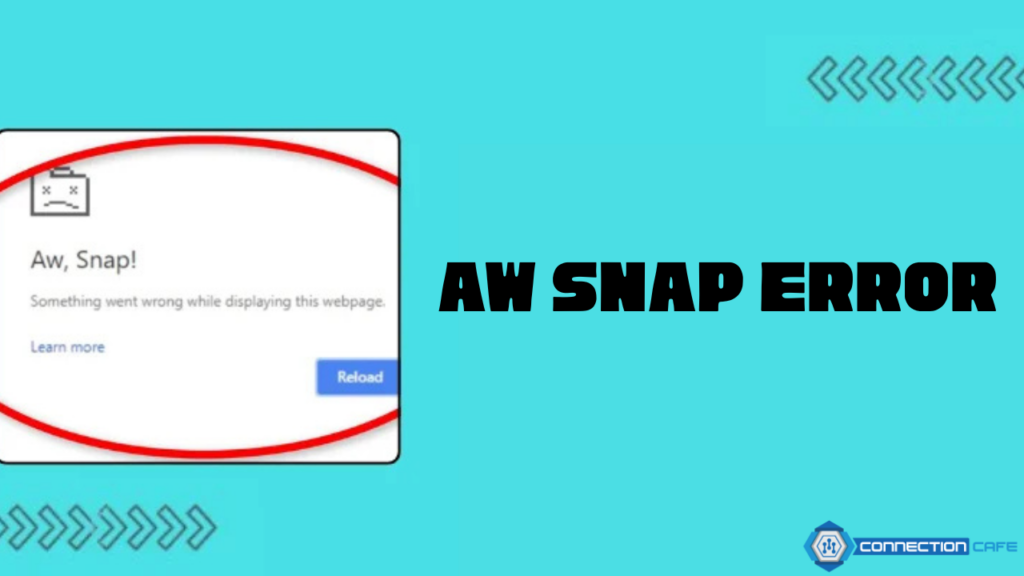
Chrome usually runs smoothly, but occasional issues can still occur. One common problem involves a page failing to load and showing the message “Aw, Snap!”
/wp:paragraph
wp:paragraph
Refreshing the browser or clearing temporary data solves the issue. When those steps don’t work, advanced methods can help restore access to the site.
/wp:paragraph
wp:paragraph
The guide below explains the “Aw, Snap!” error, outlines the typical causes, and provides eight direct ways to fix the problem.
/wp:paragraph
wp:image {“id”:44944,”width”:”742px”,”height”:”auto”,”sizeSlug”:”large”,”linkDestination”:”none”,”align”:”center”}
/wp:image
wp:heading
What Does the “Aw, Snap!” Message Mean and Why Does It Appear?
/wp:heading
wp:paragraph
Google Chrome remains the top browser used on desktop devices, which means many users are familiar with its occasional issues.
/wp:paragraph
wp:paragraph
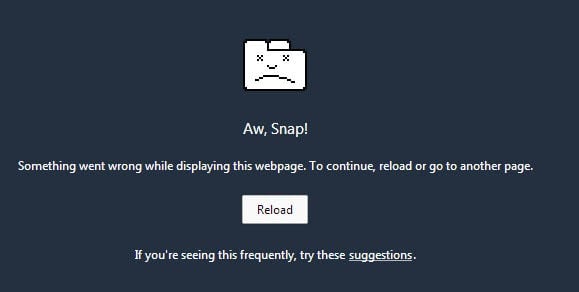
One such issue is the “Aw, Snap!” message that pops up when a page fails to load correctly.
/wp:paragraph
wp:paragraph
This error usually stops the browser from displaying a webpage, either by slowing it down or preventing it from opening entirely.
/wp:paragraph
wp:paragraph
Because it’s a general warning, the root cause can differ depending on the situation.
/wp:paragraph
wp:paragraph
Refreshing the page can resolve the problem, particularly when the browser experiences a minor hiccup. At times, system performance contributes to the issue.
/wp:paragraph
wp:paragraph
Opening multiple applications or browser tabs can drain memory, preventing Chrome from loading new content.
/wp:paragraph
wp:paragraph
Other contributing factors include:
/wp:paragraph
wp:list
- wp:list-item
- Broken or corrupted browser files
/wp:list-item
/wp:list
wp:paragraph
/wp:paragraph
wp:list
- wp:list-item
- Conflicting or poorly coded extensions
/wp:list-item
/wp:list
wp:paragraph
/wp:paragraph
wp:list
- wp:list-item
- Potential malware infections
/wp:list-item
/wp:list
wp:paragraph
/wp:paragraph
wp:list
- wp:list-item
- Problems with your internet connection
/wp:list-item
/wp:list
wp:paragraph
Despite how standard this message is, it’s usually not serious. Most of the time, identifying and addressing the cause is straightforward, and you can get back to browsing quickly.
/wp:paragraph
wp:heading
How to Resolve the “Aw, Snap!” Error in Chrome
/wp:heading
wp:paragraph
Encountering the “Aw, Snap!” message in Chrome can interrupt your workflow and become annoying.
/wp:paragraph
wp:paragraph
Below are several methods to get your browser functioning normally again.
/wp:paragraph
wp:heading {“level”:3}
Refresh the Webpage
/wp:heading
wp:list {“ordered”:true}
/wp:list
wp:paragraph
The error often occurs due to a hiccup during page loading. Before attempting complex solutions, start by refreshing the page. This quick step can resolve temporary issues.
/wp:paragraph
wp:list
- wp:list-item
- Desktop users: Click the refresh icon near the address bar or use keyboard shortcuts: wp:list
- wp:list-item
- Windows/Linux: F5 or Ctrl + R
- Mac: Command + R
/wp:list-item
wp:list-item/wp:list-item
/wp:list
- Mobile users: In the Chrome app, tap the three-dot menu and choose Reload.
/wp:list-item
wp:list-item
/wp:list-item
/wp:list
wp:paragraph
If refreshing doesn’t help, move on to the next approach.
/wp:paragraph
wp:heading {“level”:3}
Check Your Internet Connection
/wp:heading
wp:list {“ordered”:true,”start”:2}
/wp:list
wp:paragraph
A weak or unstable connection might prevent Chrome from loading pages properly, triggering the error.
/wp:paragraph
wp:list
- wp:list-item
- Quick fix: Turn on airplane mode for a few seconds, switch it off, and try again.
/wp:list-item
/wp:list
wp:paragraph
/wp:paragraph
wp:list
- wp:list-item
- Free up bandwidth: Pause downloads or close apps that use the internet heavily.
/wp:list-item
/wp:list
wp:paragraph
/wp:paragraph
wp:list
- wp:list-item
- Using a VPN? Try turning it off temporarily to see if the issue clears up.
/wp:list-item
/wp:list
wp:paragraph
/wp:paragraph
wp:list
- wp:list-item
- No internet access?
wp:list- wp:list-item
- If on Wi-Fi, restart your router.
- If using mobile data, move to an area with better signal strength.
/wp:list-item
wp:list-item/wp:list-item
/wp:list
/wp:list-item
/wp:list
wp:heading {“level”:3}
Clear Cached Data
/wp:heading
wp:list {“ordered”:true,”start”:3}
/wp:list
wp:paragraph
Stored files in your browser cache help pages load faster, but they may cause issues over time.
/wp:paragraph
wp:list
- wp:list-item
- Go to the Chrome menu (three dots in the upper right).
/wp:list-item
/wp:list
wp:paragraph
/wp:paragraph
wp:list
- wp:list-item
- Navigate to More Tools > Clear Browsing Data.
/wp:list-item
/wp:list
wp:paragraph
/wp:paragraph
wp:list
- wp:list-item
- Select Cached images and files in the Basic tab and click Clear data.
/wp:list-item
/wp:list
wp:paragraph
Once cleared, try loading the site again. If it opens, corrupted cache data was likely the problem.
/wp:paragraph
wp:paragraph
To avoid similar issues in the future, consider going to Privacy and security > Cookies and other site data and choosing options like blocking third-party cookies or automatically clearing cookies when you close the browser.
/wp:paragraph
wp:heading {“level”:3}
Try a Private Browsing Session
/wp:heading
wp:list {“ordered”:true,”start”:4}
/wp:list
wp:paragraph
If you’d prefer not to delete your browser cache, try accessing the site using a private window.
/wp:paragraph
wp:paragraph
This type of browsing prevents Chrome from storing cookies, history, autofill data, and other session information.
/wp:paragraph
wp:paragraph
To do this, open the Chrome menu and select New Incognito Window.
/wp:paragraph
wp:paragraph
You can also use these keyboard shortcuts:
/wp:paragraph
wp:list
- wp:list-item
- Windows: Ctrl + Shift + N
/wp:list-item
/wp:list
wp:paragraph
/wp:paragraph
wp:list
- wp:list-item
- Mac: Command + Shift + N
/wp:list-item
/wp:list
wp:paragraph
On mobile, tap the menu and choose New Incognito Tab.
/wp:paragraph
wp:paragraph
In the private window, type the website address you want to visit. If the page loads correctly, the issue likely stems from cached data or browser add-ons.
/wp:paragraph
wp:paragraph
Incognito mode turns both off, helping you bypass the “Aw Snap” error.
/wp:paragraph
wp:image {“id”:44945,”width”:”643px”,”height”:”auto”,”sizeSlug”:”full”,”linkDestination”:”none”,”align”:”center”}
/wp:image
wp:heading {“level”:3}
Turn Off Browser Add-ons
/wp:heading
wp:list {“ordered”:true,”start”:5}
/wp:list
wp:paragraph
Many Chrome users install extensions to enhance functionality or automate tasks.
/wp:paragraph
wp:paragraph
However, some of these tools, especially from third-party developers, might cause conflicts within the browser and trigger the “Aw Snap” error.
/wp:paragraph
wp:paragraph
To check your extensions, click More Tools and then Extensions.
/wp:paragraph
wp:paragraph
You’ll see all your installed tools. Use the toggles to disable each one.
/wp:paragraph
wp:paragraph
Once done, refresh the webpage. If it works without error, one of the disabled extensions was likely the culprit.
/wp:paragraph
wp:paragraph
You can narrow it down by turning them back on one at a time, reloading the page after each activation.
/wp:paragraph
wp:paragraph
When the error returns, you’ll know which extension caused it and can remove it.
/wp:paragraph
wp:heading {“level”:3}
Check for Browser Updates
/wp:heading
wp:list {“ordered”:true,”start”:6}
/wp:list
wp:paragraph
Although Chrome usually updates independently, it’s possible to use an outdated version without noticing.
/wp:paragraph
wp:paragraph
Running an old build might lead to performance issues or errors like “Aw Snap”.
/wp:paragraph
wp:paragraph
To check if Chrome is current, open Settings, then head to About Chrome.
/wp:paragraph
wp:paragraph
The browser will automatically scan for updates. If a new version is available, install it right away.
/wp:paragraph
wp:paragraph
If the problem persists after updating, the issue may lie elsewhere. In that case, continue with other troubleshooting steps.
/wp:paragraph
wp:heading {“level”:3}
Restart Your Device
/wp:heading
wp:list {“ordered”:true,”start”:7}
/wp:list
wp:paragraph
If you’ve tried multiple solutions but the “Aw, Snap!” error still appears, consider restarting your browser and device.
/wp:paragraph
wp:paragraph
This step helps close any background processes that could interfere with Chrome’s performance.
/wp:paragraph
wp:paragraph
Completely close the Chrome application, open it again, and return to the website to check whether the problem still occurs.
/wp:paragraph
wp:paragraph
You should also reboot your device. Turn off your computer, phone, or tablet to allow the system to refresh.
/wp:paragraph
wp:paragraph
The shutdown process varies by device. For example, on a Mac, select either Restart or Shut Down on the Apple menu.
/wp:paragraph
wp:paragraph
On Android devices, press and hold the power button. For iPhones, press and hold both the volume and side buttons.
/wp:paragraph
wp:paragraph
Once your device powers back on, open Chrome and test the page. If it loads, the problem may have been temporary.
/wp:paragraph
wp:heading {“level”:3}
Scan for Malware
/wp:heading
wp:list {“ordered”:true,”start”:8}
/wp:list
wp:paragraph
In some situations, malicious software can trigger the “Aw, Snap!” message. Signs of a potential infection include:
/wp:paragraph
wp:list
- wp:list-item
- Unexpected ads or pop-ups
/wp:list-item
/wp:list
wp:paragraph
/wp:paragraph
wp:list
- wp:list-item
- Browser settings are changing on their own
/wp:list-item
/wp:list
wp:paragraph
/wp:paragraph
wp:list
- wp:list-item
- Slower performance
/wp:list-item
/wp:list
wp:paragraph
/wp:paragraph
wp:list
- wp:list-item
- Extensions or toolbars that reinstall themselves
/wp:list-item
/wp:list
wp:paragraph
/wp:paragraph
wp:list
- wp:list-item
- Being redirected to unknown websites
/wp:list-item
/wp:list
wp:paragraph
/wp:paragraph
wp:list
- wp:list-item
- Warnings from your security software
/wp:list-item
/wp:list
wp:paragraph
If you’re using Windows, Chrome offers a built-in scanner. Navigate to Settings > Advanced > Reset and clean up > Clean up computer.
/wp:paragraph
wp:paragraph
Click “Find” to let Chrome search for harmful software and remove anything it detects.
/wp:paragraph
wp:paragraph
For Mac users, inspect your applications for any that look suspicious. If you find something unfamiliar, right-click and move it to the Trash.
/wp:paragraph
wp:paragraph
If the problem persists, consider resetting Chrome. Go to Settings, then choose the Reset Settings option.
/wp:paragraph
wp:paragraph
Select “Restore settings to their original defaults” and confirm the action when prompted.
/wp:paragraph
wp:paragraph
Afterward, Chrome should return to regular operation.
/wp:paragraph
